Text to image
Move from thought to frame
Describe the subject, light, and composition. aix0 turns the direction into an image you can keep refining.
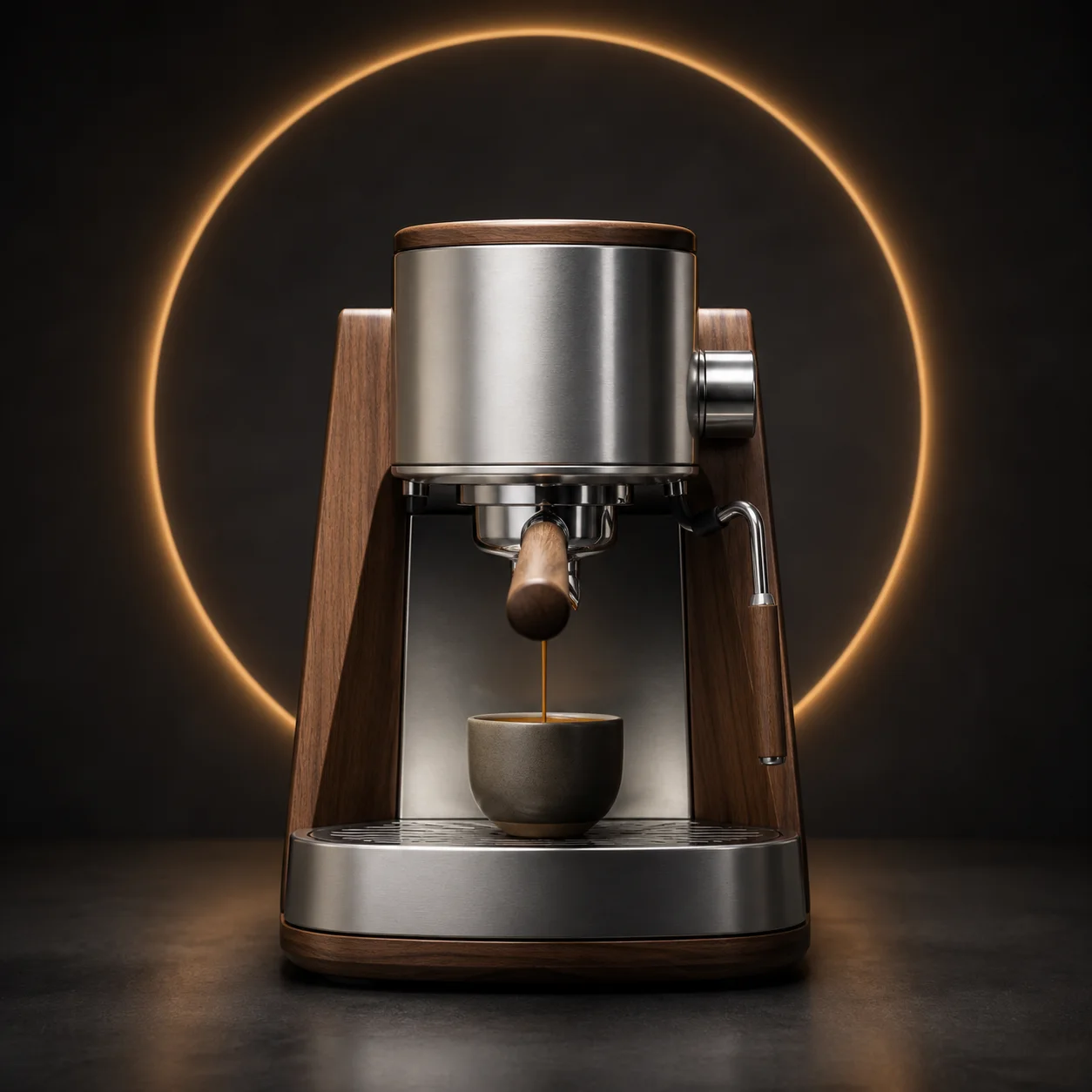
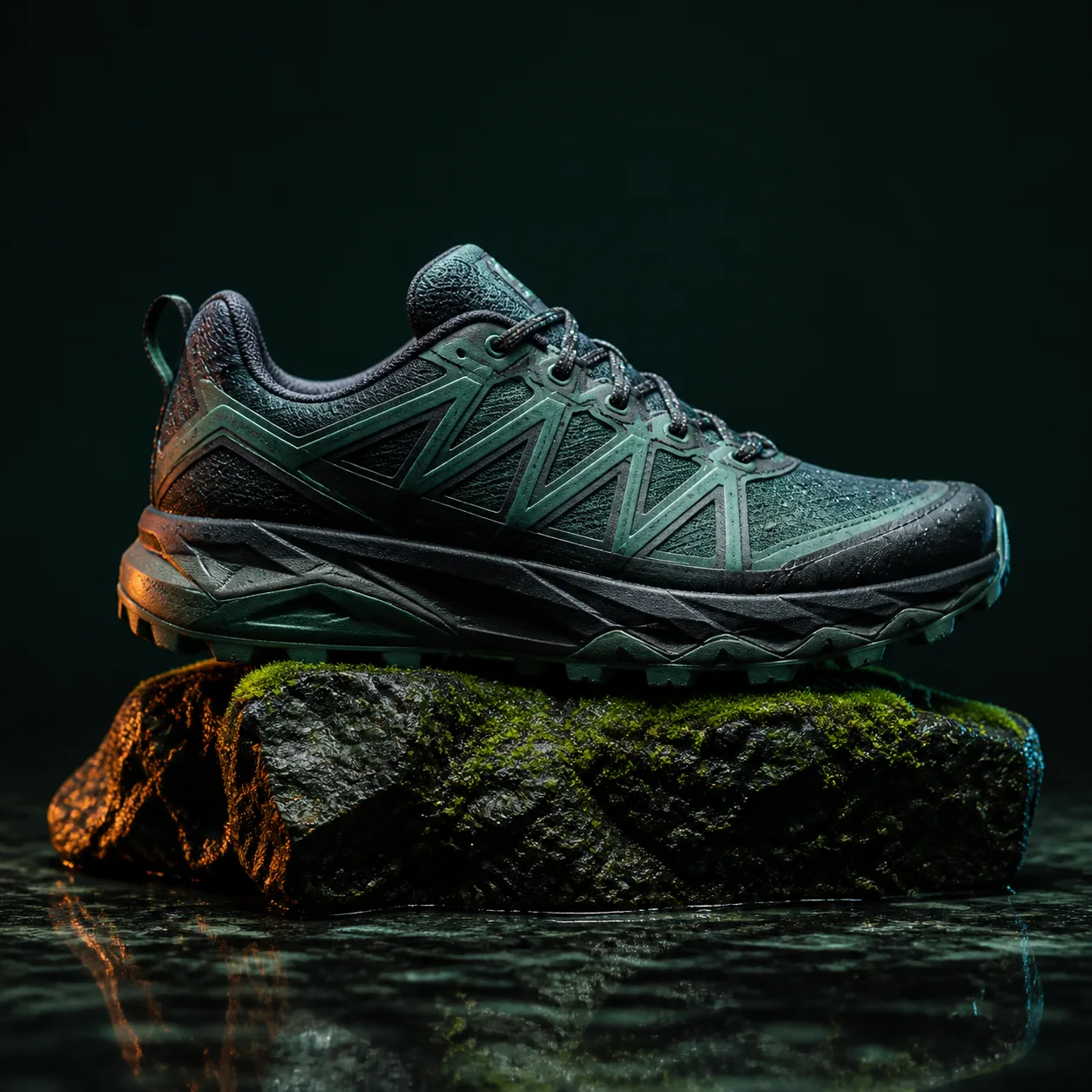
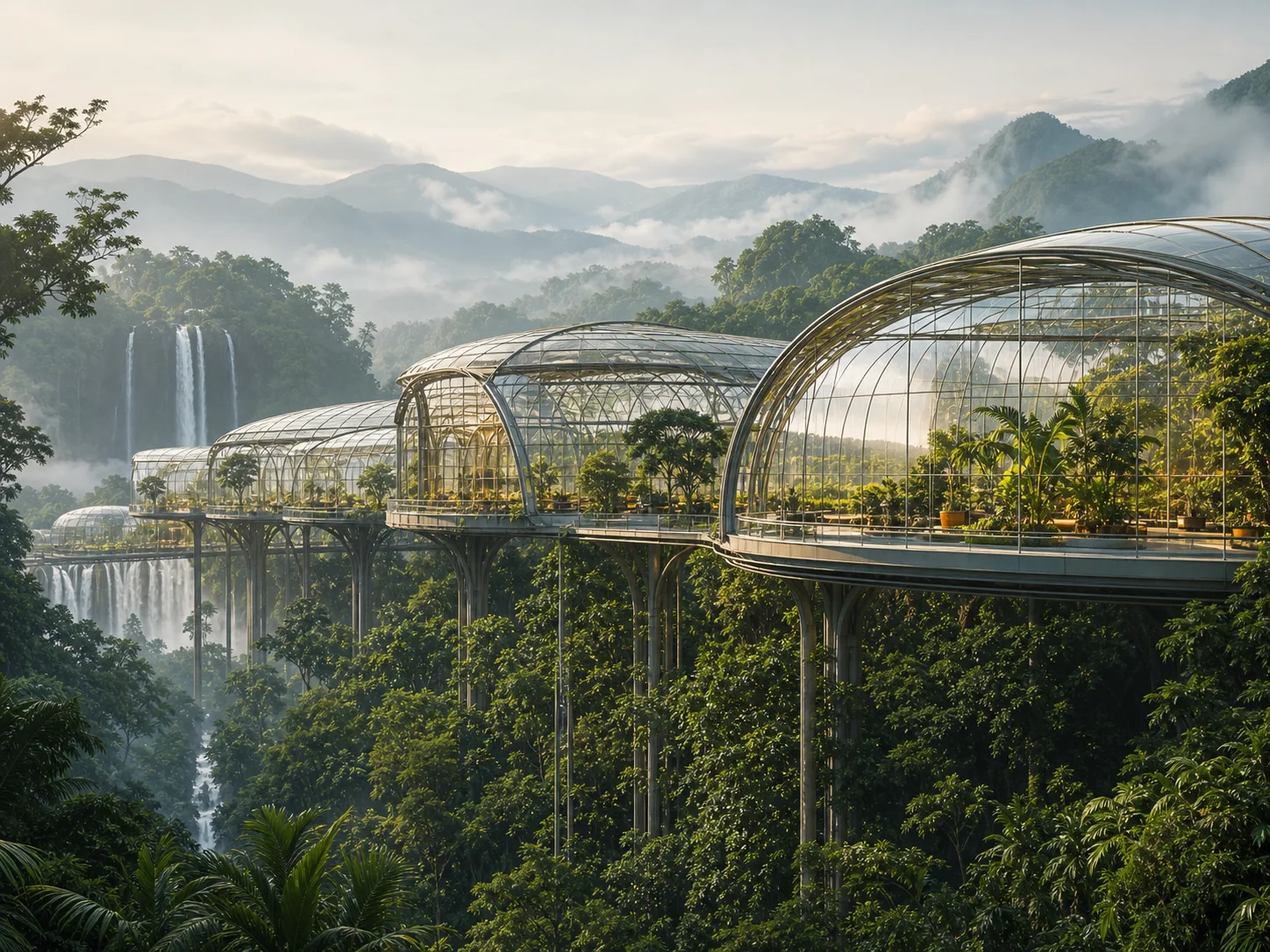
Images built around the job
Start from a clear use case, then control format and visual direction without provider-specific settings. Every run offers six aspect ratios — 1:1, 4:3, 3:4, 4:5, 16:9 and 9:16 — three quality tiers, one, two or four images at a time, and an optional style from a list of twelve, so the same brief can be rendered for a listing, a feed post and a banner without being rewritten.
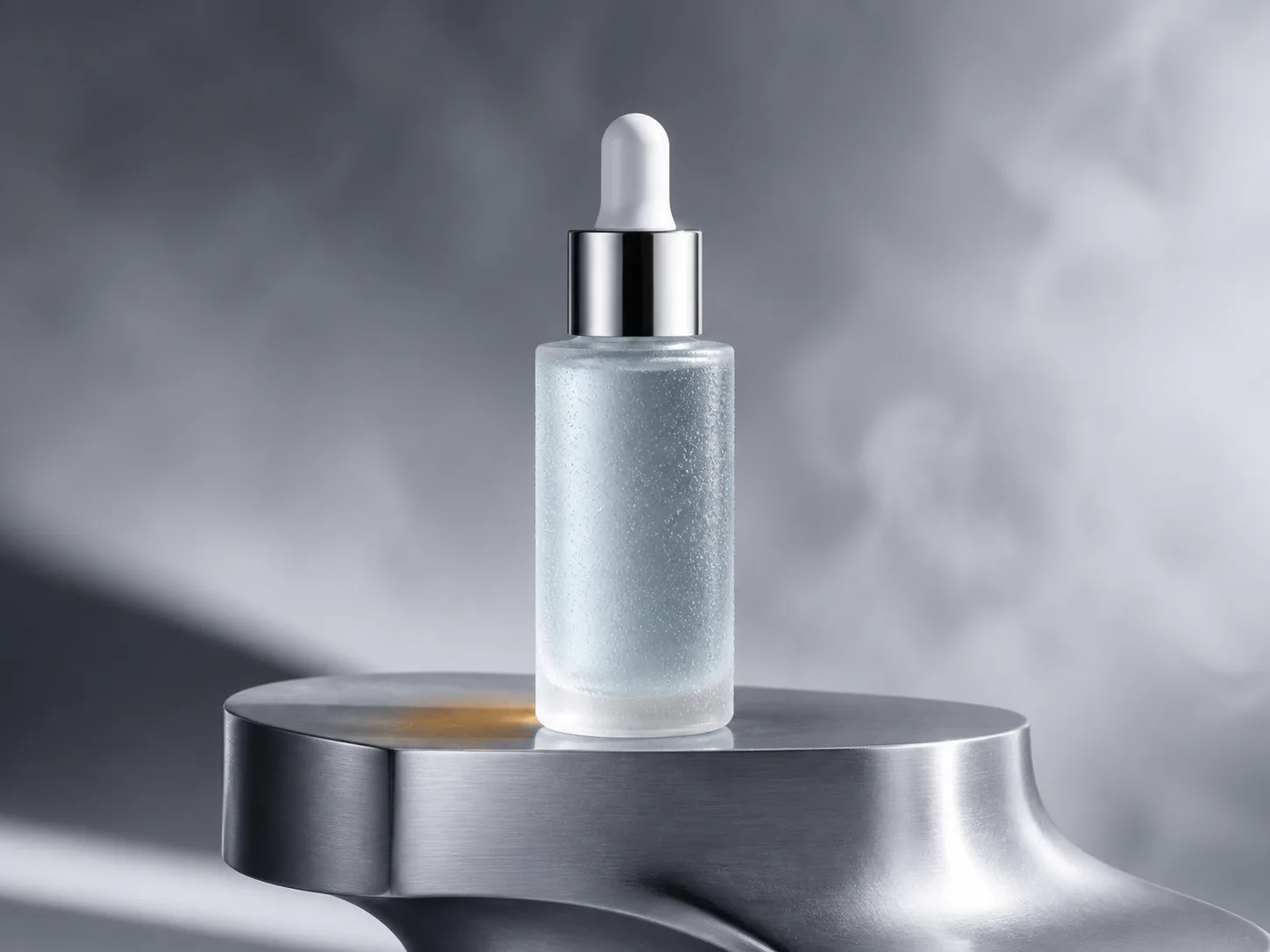
Product launches
Build campaign settings, material studies, and product scenes from a written brief. A launch usually needs the same subject in more than one shape, so generate the square first and re-run the prompt at 4:5 and 16:9 once the direction is right.
Campaign concepts
Explore visual directions before committing production time to a final concept. Four images at a time on the fast tier is the cheapest way to see whether an idea holds, and the one that works carries its exact settings into a high-quality run.
Editorial and social
Create portrait, illustration, and social variations for different placements. The style list runs from photography and cinematic through illustration, anime, 3D render, watercolour and pixel art, so one subject can be taken somewhere else without a new prompt.
A direct path from prompt to result
Describe the frame
Write the subject, setting, light, composition, and style in natural language. Prompts work in any of the eight languages the interface speaks, there is no required syntax, and specific direction beats a list of keywords — say what the light is doing, not just that there is light.
Choose the output
Set aspect ratio, quality, output count, and an optional visual style. Quality is three tiers, fast, standard and high, which map to the 1K, 2K and 4K pricing dimensions, and the estimated Credits update as you change the settings.
Compare and refine
Review each generation in history, adjust the direction, and create another version. History keeps the prompt and every setting behind a result, so a run worth repeating can be reopened and sent again with one value changed.
Controls that stay understandable
- Prompt
- Natural-language creative direction
- Format
- Square, landscape, portrait, and social ratios
- Quality
- Fast, standard, and high-quality options
- History
- Saved generations and reusable settings
Text-to-image questions
What should I include in a prompt?
Start with the subject and setting, then add light, composition, camera, material, or style details that matter.
Can I create more than one version?
Yes. Choose the output count, compare results, and reuse settings from history.
Will I see the cost first?
Yes. The image workspace shows estimated Credits before generation.
Do I need an account to try it?
No. The workbench at the top of this page is the real tool, not a demo, and you can write a prompt and set every option as a guest. Only Generate asks you to create an account, and what you filled in is saved and put back into the workbench once you are signed in, so nothing is retyped.
Is text to image free?
Creating an account comes with a free grant of Credits, which is enough to try every capability on the platform. After that each generation spends Credits, and the workbench shows the estimate before you submit. The pricing page lists the current plans and what each one grants.
Can I use the images commercially?
Yes. Our Terms do not claim ownership of your output and grant you worldwide, unlimited-time use for personal and commercial purposes, including product listings, detail pages, advertising and social media. Reviewing a result before you publish it, and any AI-content labelling rules in your market, remain your responsibility.
What happens if a generation fails?
Credits are held when you submit, not spent. At settlement only the share that actually produced an image is charged and the remainder is released back to the grant it came from, so a run of four that returns three is billed for three and a run that returns nothing costs nothing.
Which model is behind it?
The page is not tied to one provider. aix0 routes to the image models an operator has connected, and the model picker in the workbench shows which are available to you. The options you see — ratios, quality tiers, styles — are already narrowed to what the chosen model accepts, so nothing on offer can be rejected upstream.
Three jobs people bring to it
The sections above describe the tool. These are the situations it keeps getting used for, what the person at the keyboard is actually solving, and what they leave with.
A listing image before the product arrives
A seller who has approved a sample but has no photography yet can describe the product, the surface it sits on and the light, and come away with a banner for the pre-order page. Unlike a stock photo it shows the thing being sold, and when the real product lands it can be replaced without redesigning the page around it.
A week of social posts in one sitting
A content calendar needs the same idea in several shapes: 1:1 for the feed, 4:5 for the portrait feed, 9:16 for stories. Write the concept once and generate it in each ratio in turn. The settings stay in history, so next week's variation starts from the version that performed rather than from a blank prompt.
Showing a direction before anyone books a studio
Four fast-tier images are usually enough to show a client what a direction looks like, which is a cheaper conversation than a mood board of other people's work. When one is chosen, the same prompt and settings are re-run on the high tier for the frame that goes into the deck.
Continue with another workflow