AI image editor
Edit the way you describe
Upload an image, describe the change, and preserve the visual details that should stay consistent.
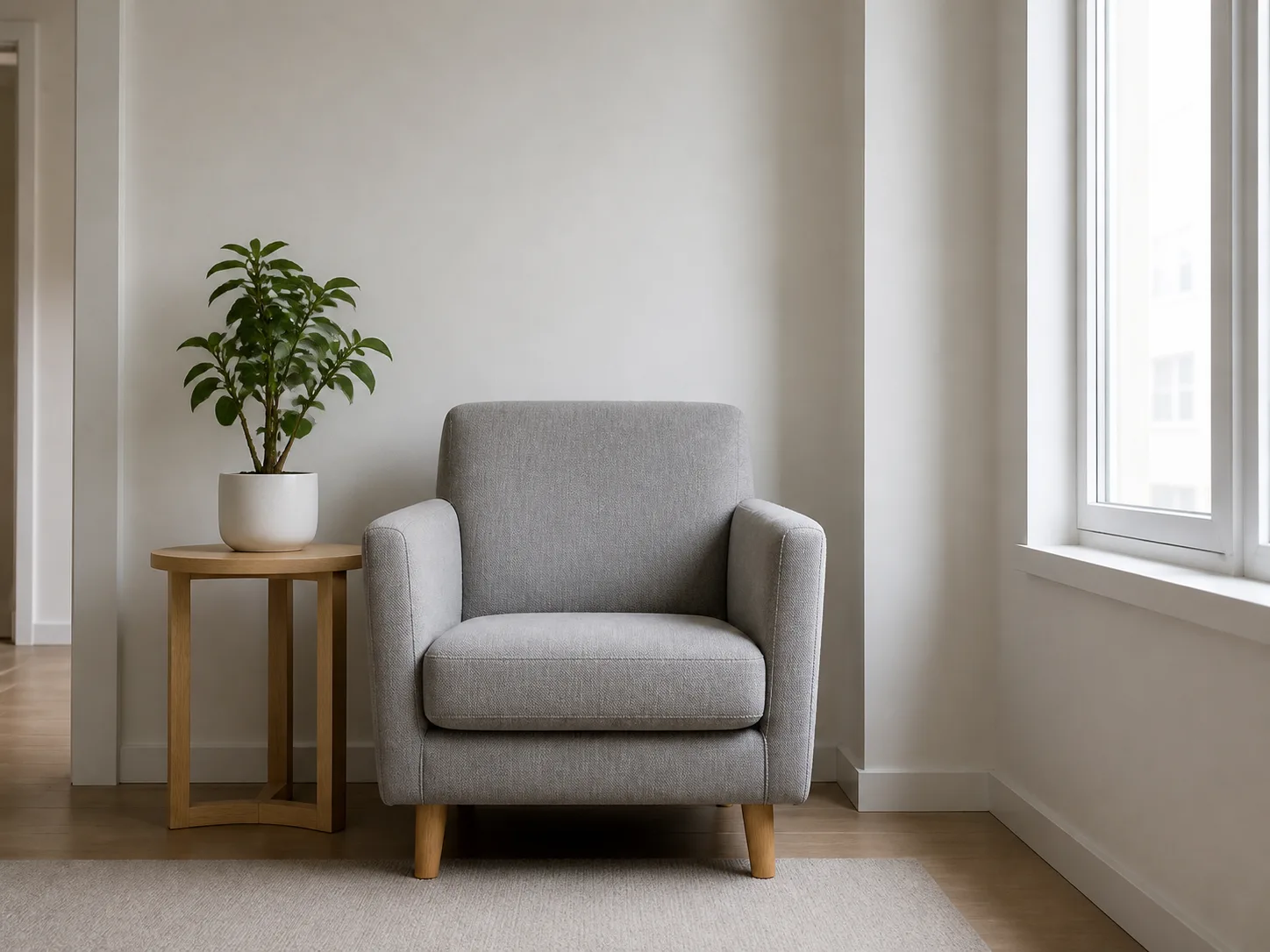
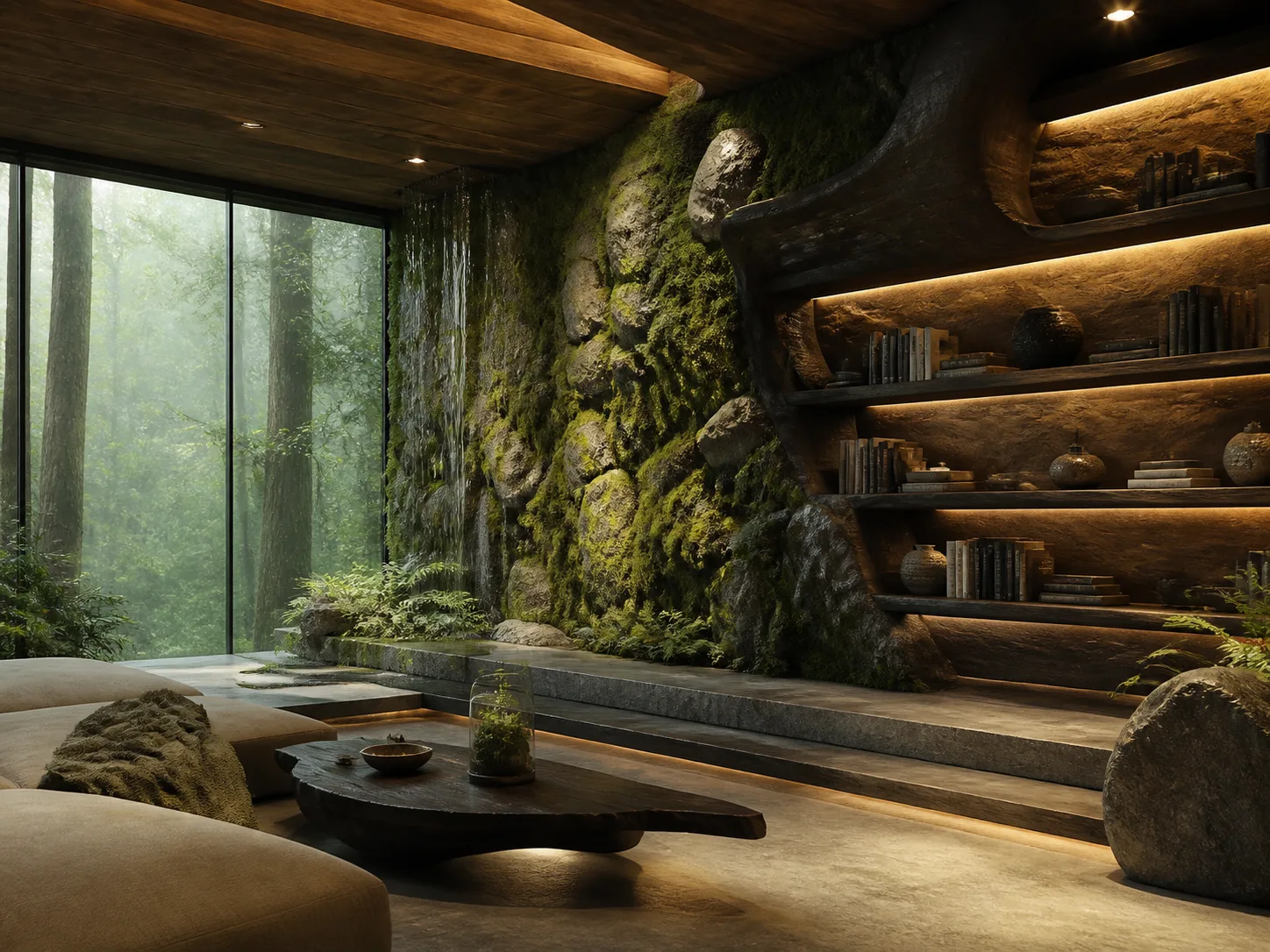
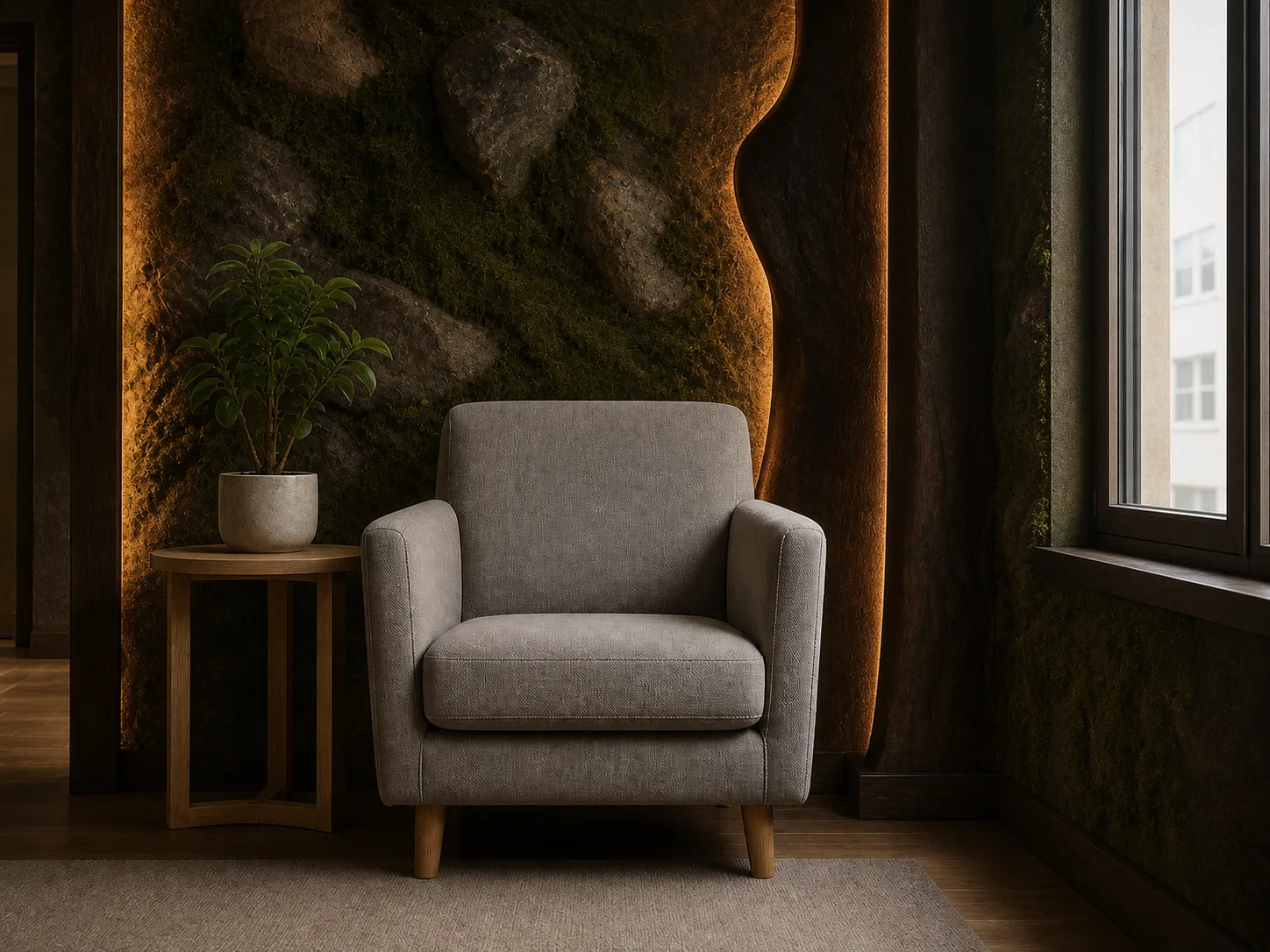
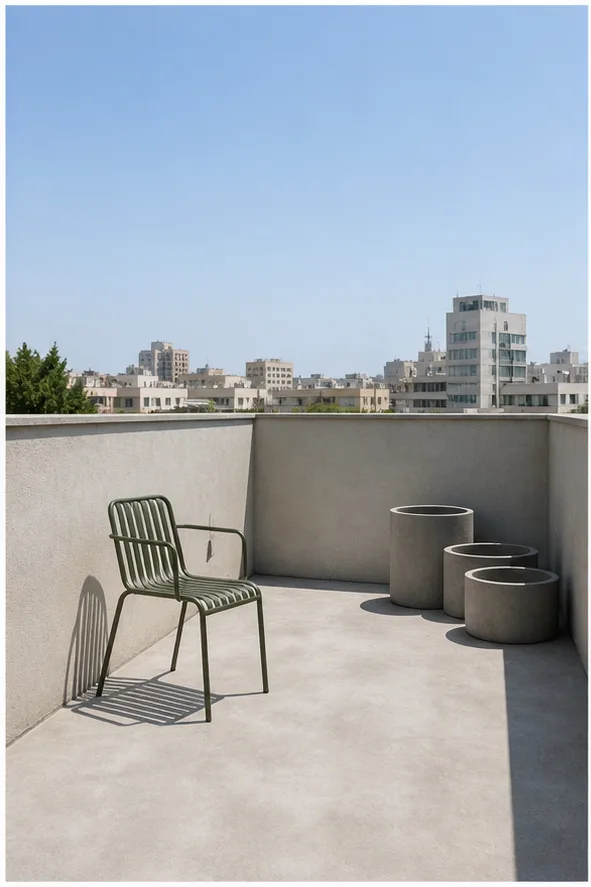
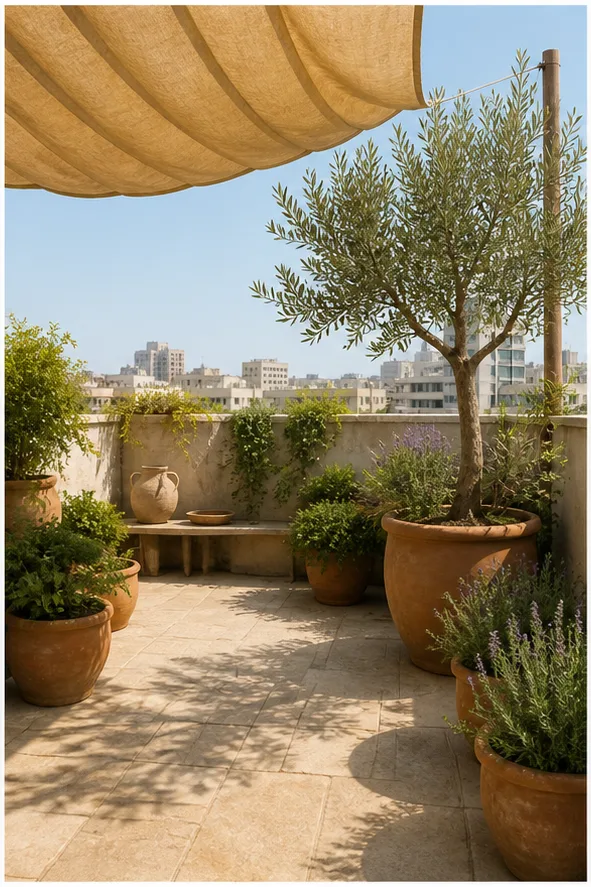
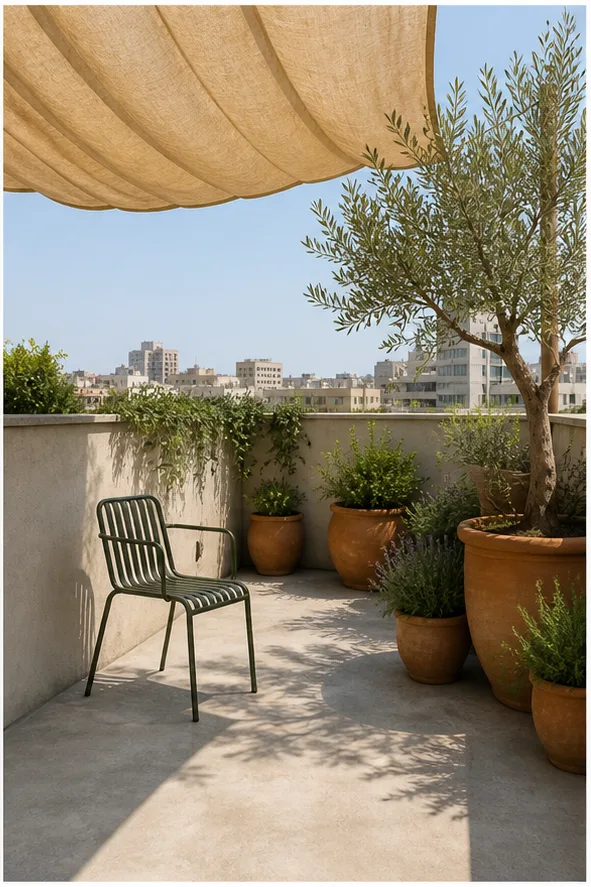
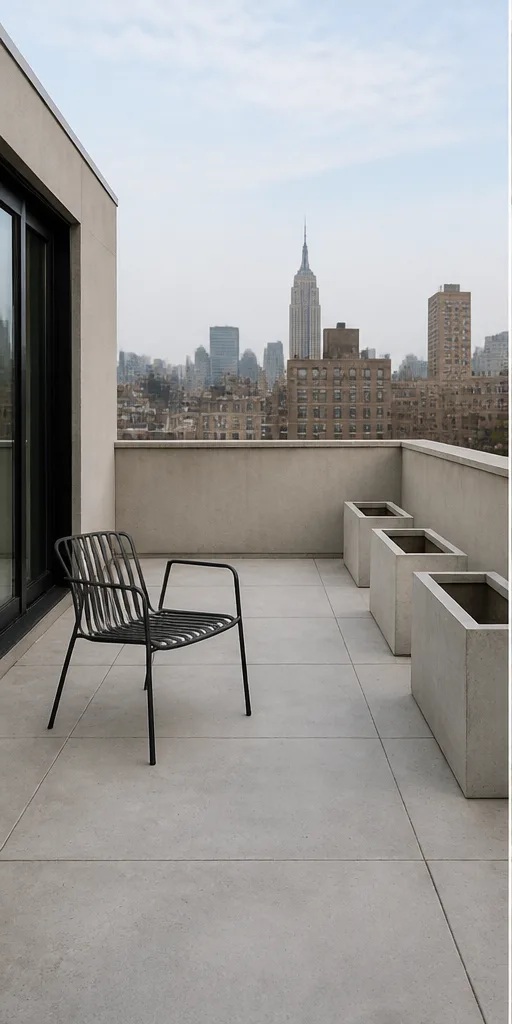
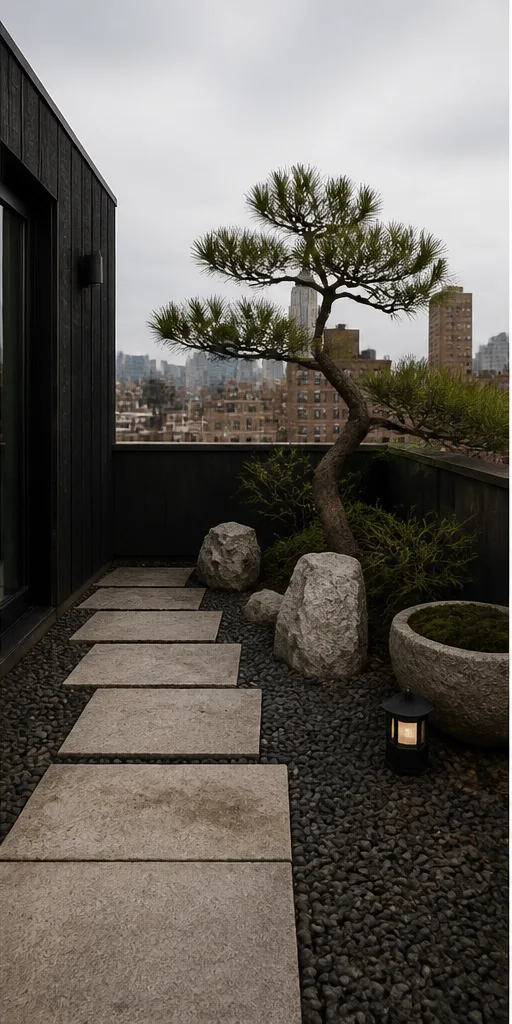
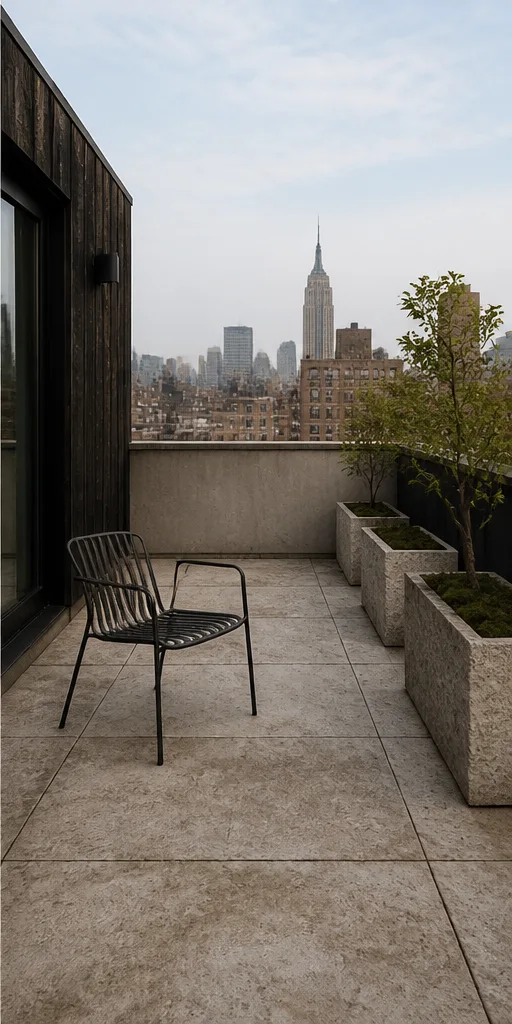
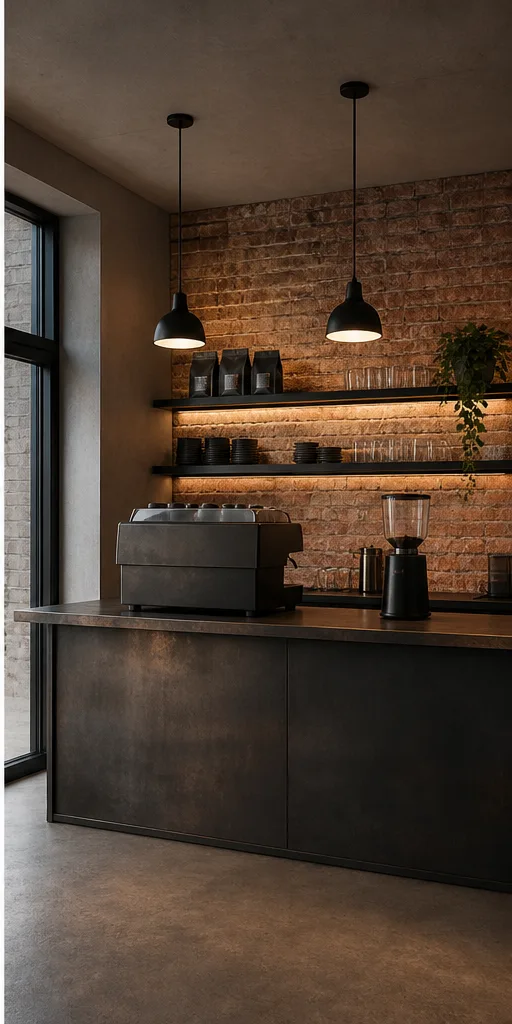
Change what matters, keep what works
Use a general edit or choose a focused workflow for identity and outfit changes. One source image sets the composition, up to nine further references can be pointed at from the prompt, and edit strength decides how far the result is allowed to travel from what you uploaded.
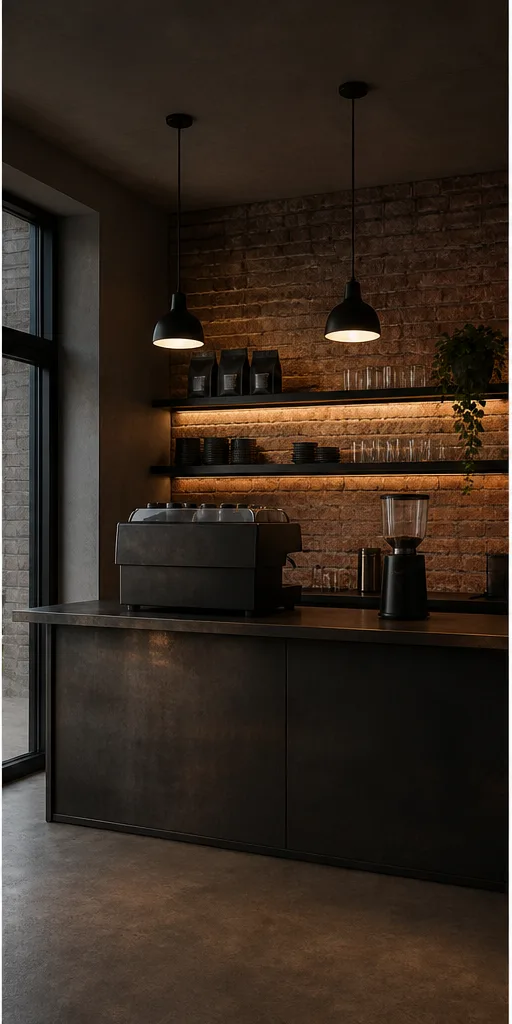
Background and object edits
Replace a setting, remove elements, or add details while keeping the source composition. Because there is no mask to draw, the useful habit is naming both halves of the job: what should change, and what must survive it untouched.
Creative restyling
Move an existing image toward a new material, lighting, or art direction. Raise edit strength when the image should be reinterpreted, lower it when a catalogue photo needs the same product in a different season.
Focused people edits
Use face-swap and outfit-change modes with consent and preservation controls. They are separate workflows with their own inputs rather than a prompt trick, which is why they can keep pose, background and camera angle while a general edit cannot guarantee it.
Edit with a clear source and direction
Upload the source
Choose the image that provides the composition and details to preserve. PNG, JPEG and WebP are accepted up to 25 MB each, and every upload is checked against its real file signature and scanned before the editor will use it.
Describe the change
Write the edit and reference uploaded images in the prompt when needed. A general edit takes up to nine references beside the source, so a brand colour, a pattern and a prop can all be shown rather than described.
Tune preservation
Adjust edit strength or focused people controls before generation. Output format is independent of the source: six ratios, three quality tiers, and one, two or four results per run, with the estimated Credits updating as you go.
Built for controlled iteration
- References
- Up to nine images in the general edit workflow
- Strength
- Control how far the edit moves from the source
- People
- Dedicated face and outfit workflows
- Reuse
- Restore prior inputs and settings from history
Image-editing questions
Do I need to mask the image first?
No mask is required. Describe the change and identify what should remain unchanged.
Can I use reference images?
Yes. General image editing accepts multiple references that can be mentioned in the prompt.
Are face and outfit edits separate?
Yes. They use focused modes with dedicated inputs, consent checks, and preservation controls.
Do I need an account to try it?
No. The workbench at the top of this page is the real editor, and you can upload a source image, write the edit and set every option as a guest. Only Generate asks you to create an account, and what you filled in is saved and put back once you are signed in.
What files can I upload, and how large?
PNG, JPEG and WebP, up to 25 MB per image. Uploads are verified against their real file signature rather than their extension, decoded to confirm they are images, and scanned before anything is editable, so a renamed file is rejected instead of reaching the model.
Is the image editor free?
Creating an account comes with a free grant of Credits, enough to try every capability. After that each generation spends Credits according to the quality tier and how many images you asked for, and the workbench shows the estimate before you submit.
What happens if an edit fails?
Credits are held when you submit, not spent. At settlement only the share that actually produced an image is charged and the rest is released back to the grant it came from, so an edit that returns nothing costs nothing and can simply be run again.
Can I use the edited images commercially?
Yes. Our Terms do not claim ownership of your output and grant you worldwide, unlimited-time use for personal and commercial purposes. You are responsible for holding the rights to everything you upload — product photos, designs, brand assets, and the likeness of any real person in the material.
Three jobs people bring to it
The sections above describe the tool. These are the situations it keeps getting used for, what the person at the keyboard is actually solving, and what they leave with.
A seasonal refresh of photos you already paid for
A catalogue shot in summer light reads wrong in a December campaign, and reshooting it is the expensive answer. Upload the existing photo, describe the season you need, keep edit strength low, and the product stays recognisably the same object while the setting moves. One source image can carry a whole campaign calendar.
Clearing a location shot that is nearly right
Real locations come with a bin, a cable or a reflection nobody noticed on the day. Name the thing to remove and name what has to stay — the shadow under the product, the colour of the wall — and the composition you shot survives. This is the edit that most often replaces a half-day of retouching.
Testing an art direction on a photo that already works
Before committing a campaign to one look, take a frame that already performs and push it somewhere else: a different material, a harder light, a flatter illustration. Generate four at once, put them in front of whoever decides, and the one chosen can be re-run at high quality from the settings stored with it.
Continue with another workflow